
Ever wondered what actually happens when you double-click an app? Or how your computer runs 100 programs at once with a single processor? This in-depth guide breaks down every major concept of operating systems using a simple restaurant analogy — no prior CS knowledge required.
Table of Contents
- Chapter 1: Entering the World of Operating Systems (Core Concepts)
- Chapter 2: Process Management
- Chapter 3: Synchronization and Deadlock
- Chapter 4: Memory Management and the Magic of Virtual Memory
- Chapter 5: File System Management
- Chapter 6: I/O and Hardware Management
- Chapter 7: Security and Protection
Chapter 1: Entering the World of Operating Systems (Core Concepts)
Buckle up — we’re diving into Chapter 1. Here, we want to understand exactly where the operating system sits inside your computer and how it interacts with everything else. Keep the “restaurant” analogy in mind throughout this guide.
1. Where Exactly Does the Operating System Live Inside Your Computer?
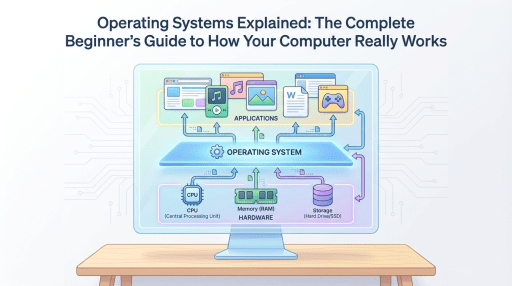
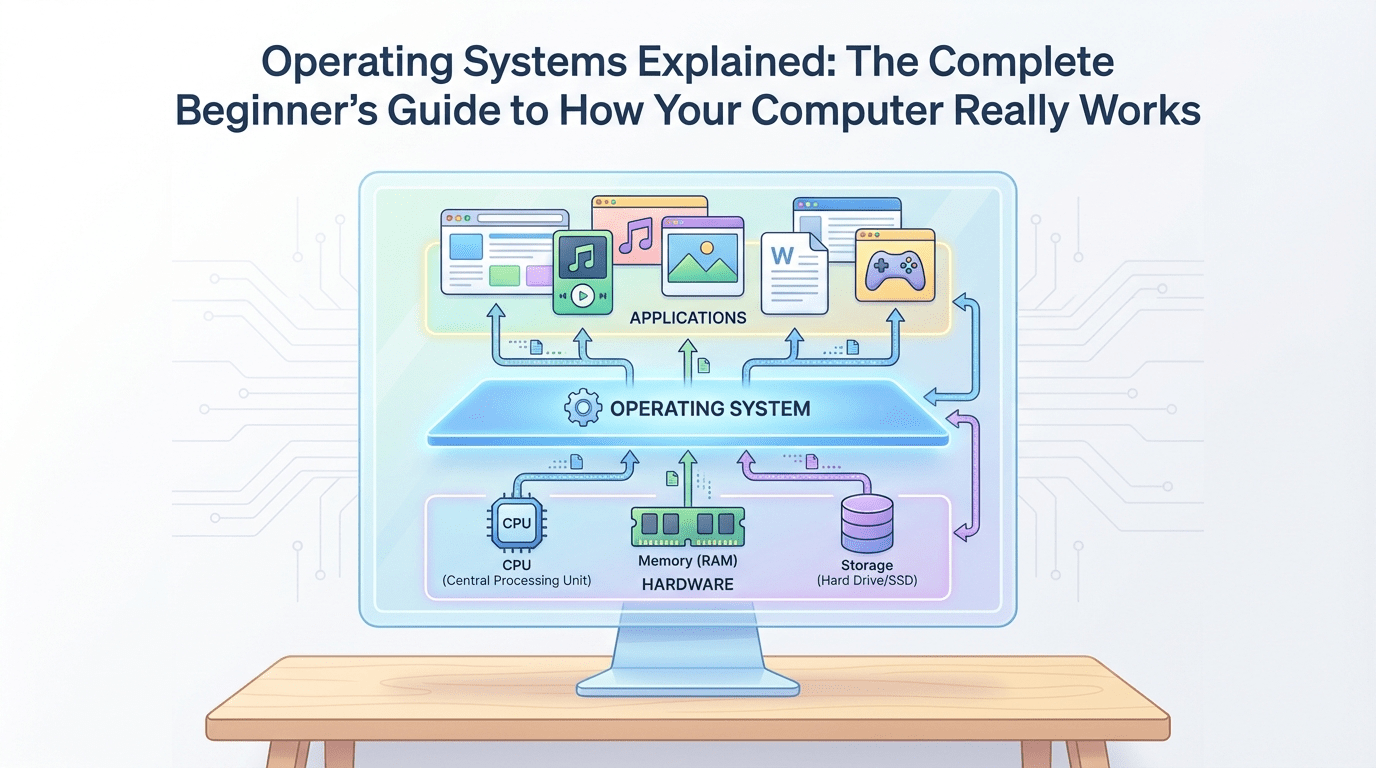
Your computer has three main layers:
- The bottom layer (Hardware): The CPU, RAM, hard drive, etc. Think of these as the restaurant building, the stove, and the raw ingredients. They have no intelligence of their own — they just wait for instructions.
- The middle layer (Operating System): Windows, Linux, macOS, Android. This layer is the restaurant manager.
- The top layer (Software/Users): Chrome browser, games, Telegram. These are the customers who just want their food served and couldn’t care less how the stove works.
The operating system sits between hardware and software so that programs don’t have to learn the strange, low-level language of hardware.
2. What Is the Kernel?
The operating system itself is a very large piece of software. Windows, for example, includes programs like Calculator, Paint, and the graphical interface (all those windows you see). But the beating heart of any operating system is called the Kernel.
The kernel is the part of the operating system that stays loaded in RAM from the moment the computer turns on until the moment it shuts down. Think of the kernel as the head executive of the restaurant — the one who holds all the keys to the warehouse and the kitchen, and has veto power over everything.
3. User Mode vs. Kernel Mode
This is one of the most important concepts for computer security and stability. To prevent the entire computer from crashing because of one small mistake in a single program, the operating system defines two operational modes for the CPU:
- User Mode: When regular programs (like Chrome or Telegram) are running, they operate in this mode. The program is in a “quarantine zone” and is not allowed to directly touch hardware (like the hard drive or another program’s memory).
- Analogy: The customer is sitting in the dining hall. They can only sit in their own chair and are absolutely not allowed to walk into the kitchen and crank up the gas stove.
- Kernel Mode: In this mode, there are no restrictions. Only the kernel (the manager) is allowed to operate here. This is where sensitive, privileged instructions get executed.
4. What Is a System Call?
Now a question arises: if Chrome is in quarantine (User Mode) and isn’t allowed to touch the hard drive, how does it save a file when you download something?
The answer: through a System Call.
When a program needs to do something important that requires hardware access — like reading a file, connecting to the internet, or using the camera — it must ask the kernel to do it on its behalf.
- Analogy: The customer (program) wants a steak (write to the hard drive). They don’t walk into the kitchen (Kernel Mode) themselves. Instead, they call the waiter (System Call). The waiter takes the request to the kitchen, the manager prepares the dish, and the waiter brings the result back to the customer.
In the real world, when a program needs to access a physical memory address, the kernel performs the necessary calculations. For example, if the base address is Base and the offset is Offset, the final address is computed as Address=Base+Offset. If this address is permitted, the kernel grants access.
Chapter 1 Summary
Programs run in a restricted mode (User Mode). Whenever they need hardware access, they send a formal request (System Call) to the operating system’s kernel, which then performs the task in the secure Kernel Mode. This is exactly why when a game freezes, your entire Windows doesn’t crash — the game is imprisoned in User Mode.

Chapter 2: Process Management
This chapter is all about what actually happens when you double-click a program icon.
1. What Is a Process?
First, we need to understand the difference between a Program and a Process:
- Program: Files sitting on your hard drive (like chrome.exe). This is like a cookbook on a shelf — it does nothing by itself.
- Process: When you click on that program, the operating system loads it from the hard drive into RAM and starts executing it. A process is a program in execution. This is like the chef opening the cookbook, laying out ingredients on the counter, and actively cooking.
Every process gets its own dedicated space in memory, which includes the program’s code, variables, and real-time state information.
2. The Process Lifecycle (Process States)
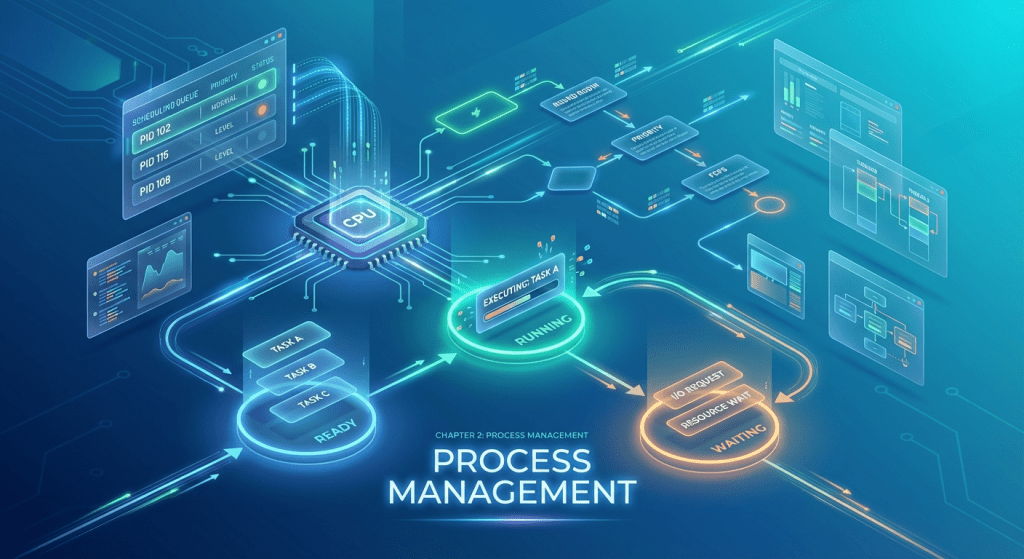
A process goes through 5 stages from birth to death. Let’s walk through them with our kitchen analogy:
- New: You’ve clicked the program. The OS is preparing RAM space for it. (The food order has been placed.)
- Ready: The program is loaded in RAM and waiting for the CPU to give it attention. (Ingredients are on the counter, waiting for the chef to be free.)
- Running: The CPU is actively executing the program’s code. (The chef is cooking the dish.)
- Waiting/Blocked: The program suddenly needs something slow — maybe you hit print, or it’s waiting for a file to download. Since the hard drive or internet is much slower than the CPU, the process enters a blocked state so the CPU doesn’t sit idle and can move on to the next program. (The chef is waiting for meat to thaw from the freezer, so they temporarily switch to making a salad.)
- Terminated: The program closes and the OS frees its RAM space. (The dish has been served and the counter is cleaned up.)
3. What Is a Thread?
Imagine you’ve opened Microsoft Word. While you’re typing, the program is simultaneously checking for spelling errors and auto-saving the file every few minutes. How does a single process do multiple things at once?
By using Threads.
Each process can be divided into multiple threads. If a process is a workshop, threads are the workers inside that workshop. They all work in the same shared space (the RAM allocated to that program), but each one handles a smaller task.
4. CPU Scheduling
This is where the restaurant manager (operating system) does the hardest part of the job. Imagine we have 1 CPU but 100 open programs. How does the OS keep things fair?
The OS uses various scheduling algorithms. One of the most well-known is Round Robin scheduling.
In this method, the OS sets a very short time slice called a Time Quantum (for example, Q=10 milliseconds). The OS gives each process exactly Q time, then interrupts it and moves to the next one.
Math example: Suppose Process A needs 30 milliseconds to complete. If Q=10, the OS calculates:
This rapid switching between programs (called a Context Switch) happens so fast that our eyes can’t notice it, and we think the computer is doing everything simultaneously.
Chapter 2 Summary
A running program is called a process. Processes are divided into threads for concurrent tasks, and the OS uses scheduling algorithms (like Round Robin) to rapidly divide CPU time among them.
Chapter 3: Synchronization and Deadlock
Welcome to one of the most fascinating chapters. This is where the operating system plays the role of a traffic cop.
When multiple processes (chefs) are working simultaneously, they sometimes clash over shared resources (like a file or a piece of memory). Let’s see what happens.
1. Race Condition
Imagine two programs (or two threads within one program) want to modify the same shared variable in RAM. This situation is called a Race Condition.
- Restaurant example: Suppose the warehouse has N=10 bags of flour.
- Chef A (Program 1) reads the inventory: N=10. He wants to add 5 bags, so he calculates: 10+5=15.
- At that exact millisecond, Chef B (Program 2) also reads the inventory (the previous update hasn’t been saved yet, so he also sees N=10). He wants to take 2 bags, so he calculates: 10−2=8.
- Chef A writes 15 to the ledger. A hundredth of a second later, Chef B overwrites it with 8.
- Result: In reality, we should have 10+5−2=13 bags, but the computer has stored the wrong number — 8 (or 15). Disaster.
2. Traffic Control Tools: Mutex and Semaphore
To prevent this disaster, the OS provides solutions like Mutex and Semaphore. These are essentially locks that prevent simultaneous access.
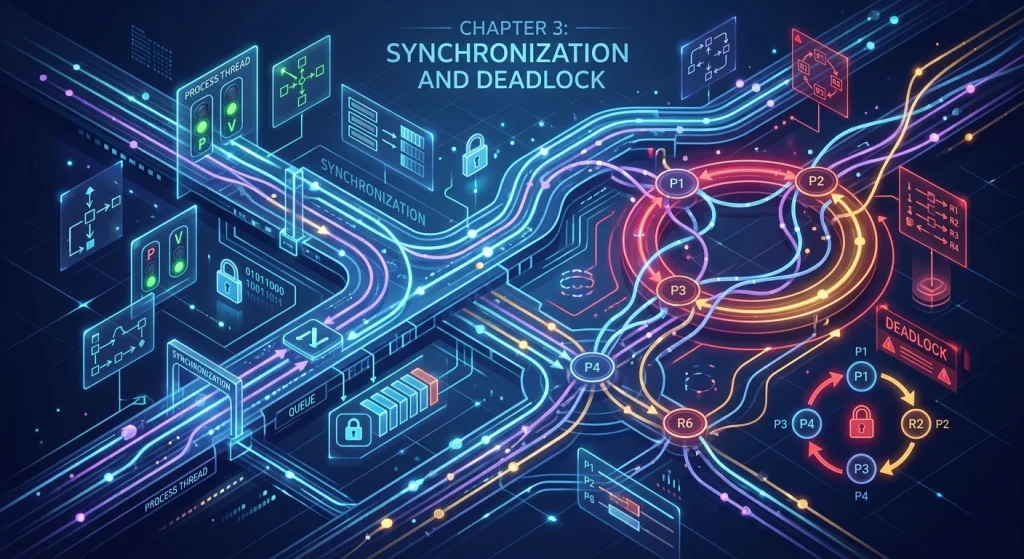
- Mutex (Exclusive Lock): Think of it as the key to a single-occupancy restroom. When Program 1 wants to modify variable N, it picks up the Mutex key and locks the door. If Program 2 tries to access N, it finds the door locked and must wait (become Blocked) until Program 1 finishes and returns the key.
- Semaphore: Think of it as a bank’s ticket dispenser — used for resources that exist in more than one copy. Suppose our restaurant has K=3 pizza ovens. The semaphore starts at S=3. Each chef who takes an oven decrements by 1. When S=0, all ovens are occupied and everyone else must wait in line.
3. Deadlock
Now that the OS lets programs lock resources, a terrifying new problem emerges: Deadlock.
- Deadlock example:
- Chef A picks up the knife (locks it) and is waiting for the cutting board to start chopping vegetables.
- Chef B picks up the cutting board (locks it) and is waiting for the knife to start working.
- Neither is willing to release their tool so the other can proceed. Result? Both remain frozen forever.
In a computer, the same thing happens: Program 1 locks File A and waits for File B, while Program 2 locks File B and waits for File A. The system hangs or freezes.
How does the OS solve this? The restaurant manager (OS) has four strategies:
- Ignore it (Ostrich Algorithm): Like an ostrich burying its head in the sand, the OS says “hopefully deadlock won’t happen.” Interestingly, both Windows and Linux actually use this approach in normal operation to avoid slowing down the system. If your system gets stuck, you have to manually kill programs via Task Manager.
- Prevention: Establish rules so that, for example, no chef is allowed to wait for two tools simultaneously.
- Avoidance: Before handing a tool to a chef, the manager uses a mathematical formula (like the Banker’s Algorithm) to check whether granting this resource could lead to deadlock later.
- Detection and Recovery: The manager lets deadlock happen, then forcibly removes one of the chefs from the kitchen (Process Kill) to free up their resources.
Chapter 3 Summary
When programs work on the same resource simultaneously, they can corrupt data (Race Condition). To fix this, we give them locks (Mutex). But using locks can cause programs to wait for each other forever (Deadlock).
Chapter 4: Memory Management and the Magic of Virtual Memory
In our analogy, the CPU was the chef. Now let’s look at the kitchen counter (RAM). The counter is where ingredients (program code and data) are temporarily placed so the chef can access them quickly.
1. The Fragmentation Problem
When you open and close various programs, the OS constantly allocates and deallocates RAM space for them.
After a while, RAM looks like a messy counter full of small empty gaps scattered between programs. If you now want to open a large program (like Photoshop), even though there’s technically enough total free space on the counter, the empty spots aren’t contiguous — so you can’t open Photoshop. This problem is called Fragmentation.
2. The OS Solution: Paging
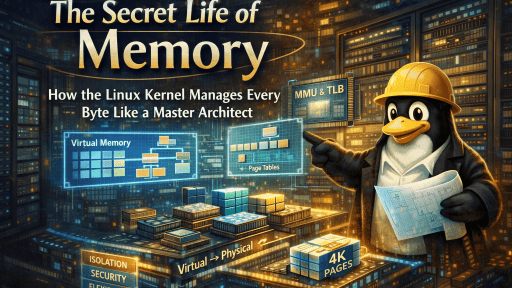
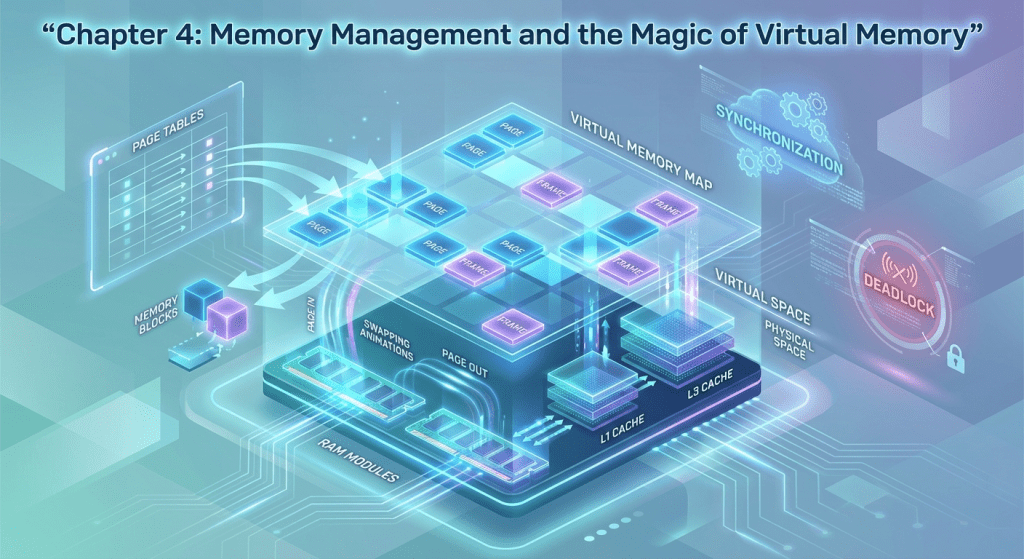
To solve this mess, the OS establishes a rule: it divides all of RAM and all programs into equal-sized chunks. These chunks are called Pages (on the program side) and Frames (on the RAM side). The page size is usually fixed (for example, S=4 KB).
Math example: Suppose your program is P=16 KB. The OS divides it into:
The beauty of this approach is that the entire program no longer needs to sit in one contiguous block of RAM. Page 1 can be at the beginning of RAM, Page 2 at the end. The OS maintains a notebook called the Page Table that records where each chunk of the program has been placed.
3. The Magic of Virtual Memory
Now we reach the most fascinating part. Suppose you only have R=8 GB of RAM, but you want to run Chrome, Telegram, a heavy game, and Photoshop simultaneously — requiring a total of V=12 GB (12>8). How does the OS pull this off without crashing?
The OS uses a portion of the hard drive (or SSD) as a “backup fridge.” This trick is called Virtual Memory.
The kernel checks which pages are currently not being used. For example, Telegram is open but you haven’t touched it in 30 minutes.
The OS takes Telegram’s pages off the counter (RAM) and puts them in the fridge (hard drive). This is called Swap Out. Now there’s room on the counter to load the game.
4. What Is a Page Fault?
Now, if a Telegram message arrives while you’re gaming and you want to open it — what happens?
The CPU (chef) goes to the counter looking for Telegram’s data but finds it’s not there. At this point, the OS raises an alert called a Page Fault.
It quickly pauses the game, moves some of the game’s data to the fridge (hard drive), brings Telegram’s data from the fridge back to the counter (RAM), and displays it for you. This is called Swap In.
This is exactly why switching between programs takes longer when your RAM is low, and you can hear the hard drive grinding away — the OS is constantly shuffling data between the counter and the fridge.
Chapter 4 Summary
The OS solves RAM fragmentation by splitting programs into chunks (Paging) and uses the hard drive as auxiliary RAM (Virtual Memory), allowing you to run more programs than your physical memory can hold.
Chapter 5: File System Management
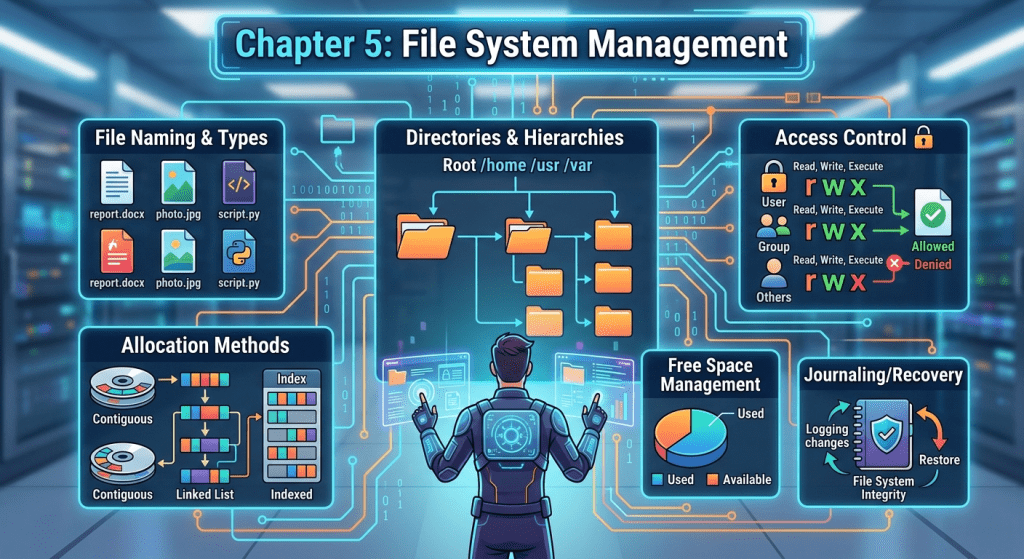
In our restaurant analogy, if the CPU is the chef and RAM is the counter, then the hard drive (HDD or SSD) is the large warehouse for ingredients. The file system is essentially the shelving, labeling, and inventory ledger for this warehouse.
1. Files and Directories from the OS Perspective
- File: The basic unit of data storage (like a specific box of ingredients in the warehouse).
- Directory (Folder): A hierarchical, tree-like structure for organizing files so the warehouse stays tidy and finding one file among millions is fast.
2. Types of File Systems
Different operating systems use different methods to manage this warehouse:
- NTFS: The default file system for Windows. It offers strong security and supports very large files.
- Ext4: The most common file system in Linux. Extremely stable and fast.
- APFS: Apple’s modern file system for macOS and iOS, optimized for high-speed SSDs and encryption.
- FAT32: An older system still used on USB flash drives because virtually every device (from TVs to car stereos) recognizes it. However, it doesn’t allow files larger than 4 GB (i.e., V>4 GB is not supported).
3. Storage Structure on Disk
How does the OS know where each file is located on the hard drive?
- Partitioning: First, the entire warehouse is divided into separate sections (like Drive C and Drive D).
- Blocks: The drive’s space is divided into small cells (for example, each B=4 KB in size). A large file might occupy hundreds of blocks.
- FAT Table or Inode: The OS creates a central index (like a book’s table of contents). In Linux-based systems, this is called an inode. Each file has a unique inode code that records something like: “Your photo file is stored in blocks number 105, 208, and 301.”
The OS’s role is to hide all the complexity of the physical disk from you. You simply double-click a photo icon, and in a fraction of a second, the OS reads the index, locates the blocks, stitches them together, and sends the data to RAM.
Chapter 5 Summary
The file system is the OS’s method for organizing, storing, and retrieving data on the hard drive — ensuring that information survives power outages and remains quickly accessible.
Chapter 6: I/O and Hardware Management
In our restaurant analogy, the CPU was the chef, RAM was the counter, and the hard drive was the warehouse. Now, input/output devices (mouse, keyboard, monitor, printer) are the waiters and delivery drivers who take orders from customers (you) and deliver results back.
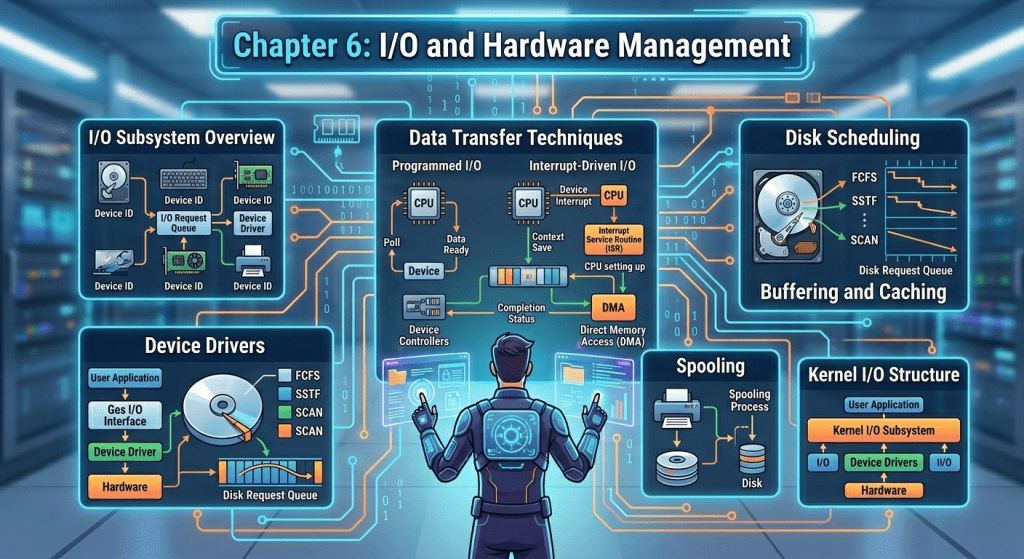
1. Device Drivers: Dedicated Translators
The variety of hardware in the world is virtually infinite (thousands of mouse models, printers, and graphics cards). The OS can’t possibly speak the language of every single device.
So each piece of hardware comes with a small piece of software called a driver. A driver acts as a translator: the OS tells the driver “print this text,” and the driver converts that instruction into electrical signals that the specific printer model can understand.
2. Methods of Communicating with Hardware
Suppose you press a key on the keyboard. How does the CPU find out? There are three main methods:
- Polling: The CPU asks the keyboard every t=10 milliseconds: “Has a key been pressed?” This method is highly inefficient and wastes CPU time.
- Interrupt: The CPU goes about its business (e.g., running a game). When you press a key, the keyboard sends a hardware signal (interrupt) to the CPU. The CPU immediately pauses its current task, reads the pressed key, and then returns to the game.
- Direct Memory Access (DMA): Suppose you want to transfer a large file of V=5 GB from a flash drive to the hard drive. If the CPU had to move this data byte by byte, it would be completely tied up. Instead, a component called DMA is used. The OS tells the DMA: “Transfer these 5 GB directly into RAM, and notify me when you’re done.” The transfer happens directly (/O→RAM) and the CPU remains free.
3. Types of I/O Devices
The OS categorizes devices into two main types:
- Block Devices: Read and write data in fixed-size blocks (e.g., blocks of B=4096 Bytes). Examples include hard drives and flash drives. You can directly access block number N=150.
- Character Devices: See data as a stream of characters (byte by byte). Examples include the mouse and keyboard. You can’t go back in the keyboard and directly re-read a key that was pressed 5 seconds ago from the device itself.
Chapter 6 Summary
The OS communicates with various hardware through drivers and uses mechanisms like interrupts and DMA to coordinate communication between you, the hardware, and the CPU at maximum speed with minimum overhead.
Chapter 7: Security and Protection
In our restaurant analogy, the OS has been the manager, the warehouse keeper, and the head of the waitstaff. But every large restaurant also needs a security guard to make sure nobody disrupts order or breaks in.
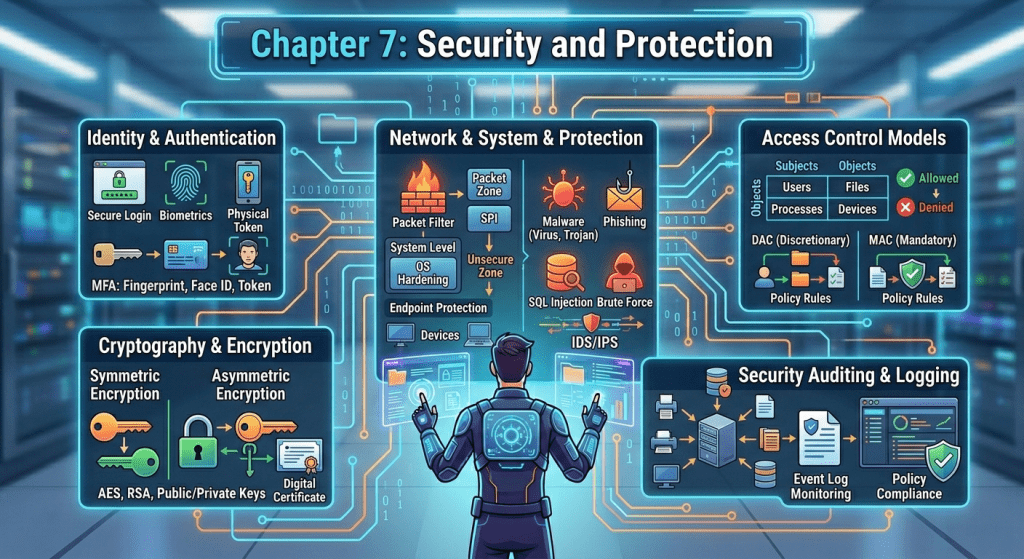
1. Protection vs. Security
- Protection: Refers to internal system controls. For example, the OS prevents Telegram (customer at table 1) from reading WhatsApp’s messages (customer at table 2) that are sitting in RAM.
- Security: Defending the entire system against external threats (hackers, viruses, malware, and unauthorized access to the computer).
2. Protection Rings
To prevent ordinary programs or careless users from destroying the entire system, the OS divides the CPU into different privilege levels (typically numbered 0 through 3):
- Ring 3 (User Mode): Regular programs like web browsers, Photoshop, or games run at this level. They have no direct access to hardware.
- Ring 0 (Kernel Mode): The OS kernel operates at this level with absolute power.
If a program in Ring 3 wants to delete a file from the hard drive, it can’t do so directly. It must send a request (System Call) to Ring 0. The OS reviews the request, and if the program has the necessary permissions, the kernel deletes the file itself.
3. Access Control
The OS needs to know who you are and what you’re allowed to do. It uses a concept called an Access Control Matrix.
Every file has permissions:
- Read = R
- Write = W
- Execute = X
The OS checks whether a user with, say, UID=105 is allowed to open a V=10 MB file and write to it (W), or only has read permission (R). In Windows, you can see this under the Security tab in a file’s Properties. In Linux, you manage it with commands like chmod.
4. Common Threats
The OS must contend with various security challenges:
- Trojans: A program that looks like an exciting game but secretly steals your data in the background.
- Buffer Overflow: Hackers send more data than a variable can hold (for example, a variable with capacity for N=50 characters receives 100 characters). This causes the hacker’s malicious code to overflow into memory, and the OS mistakenly executes it.
Chapter 7 Summary
The operating system isn’t just an executive manager — it’s a border guard. By building security walls (isolating program memory, assigning permissions, enforcing User/Kernel mode separation), it works to keep the computer safe from both internal program errors and external cyberattacks.
Final Thoughts
And that completes the full picture of how operating systems work. From the kernel that manages everything behind the scenes, to processes and threads that bring your apps to life, to the memory tricks that let you run more than your hardware should allow, to the file systems that keep your data organized, to the I/O drivers that translate between your devices and your CPU, and finally to the security layers that keep it all safe — the operating system is the unsung hero of every computer.
Next time your computer feels slow when switching between apps, you’ll know exactly what’s happening: the OS is busy swapping pages between RAM and disk. And when a game crashes but Windows keeps running? That’s User Mode doing its job perfectly.